
Collaborative Tools allows UC ANR members to communicate via messages and documents and retain discussions online. It is a private system — only invited members have access. Once added to a group, members can see all messages and documents in that group.
Note: Master Gardeners, 4-H volunteers, and non-ANR staff cannot create new discussion groups. Contact your group owner or program coordinator to request access to an existing group.
Getting Started
1. Start a new group
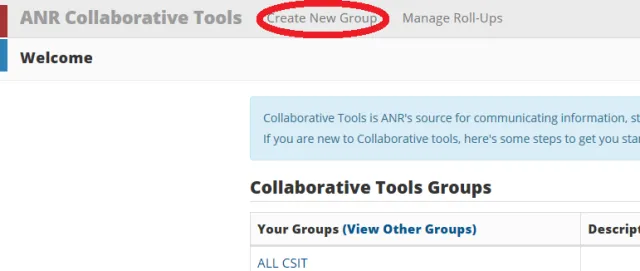
Click Create New Group in the navigation menu, fill out the form, and your group will be created immediately.
2. Add group members
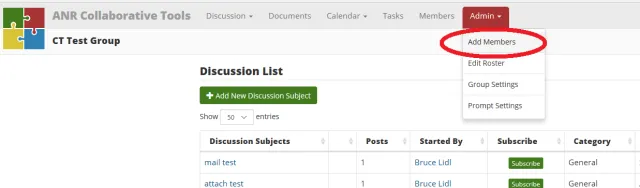
From within your group, click Admin then Add Members. Add members before creating any discussions — Collaborative Tools does not send alerts retroactively.
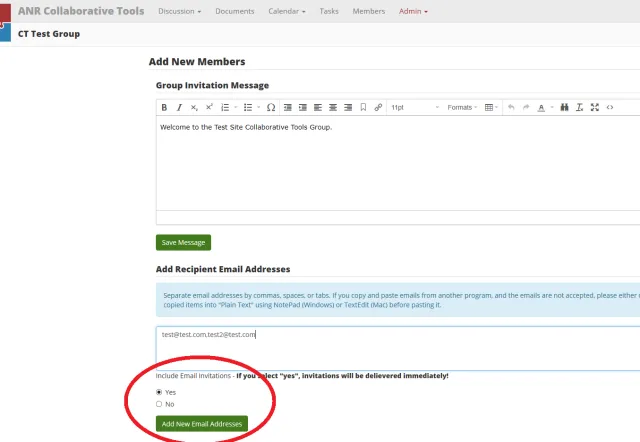
Enter email addresses separated by commas and click Yes to notify members and send them the account setup email.
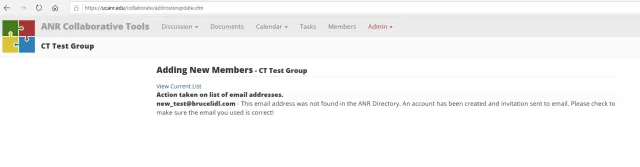
Members will not be verified until they have created a password for their account.
To complete registration, members must log in using the Change Password function.
3. Edit your profile
Click Profile in the top right to update your name, email, photo, and other profile information.
4. Add a discussion or message
From within your group, click Add New Subject to start a new discussion. To reply to an existing discussion, open it and click Add to Discussion.
For help with Collaborative Tools, email help@ucanr.edu.