
This page provides tips and workarounds for specific issues you may encounter while working in IWP. These instructions address common questions or known behaviors that may require an additional step.
Guidance on this page may be updated as IWP features and functionality change.
On This Page
Event Links
A change was made to the IWP logic for event search in June 2026. Some older "View All Events" links may still use outdated search parameters.
These older links may result in a 403 or 404 error, a page title beginning with a "%" symbol, or events displaying out of order.
Correct URL
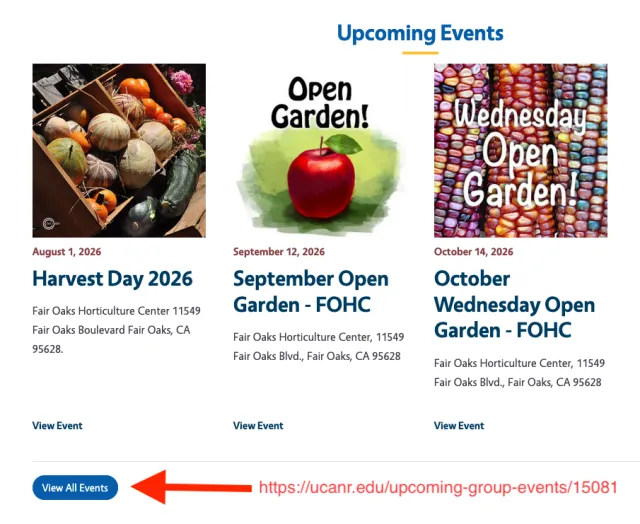
Current event links use the following format:
https://ucanr.edu/upcoming-group-events/<group-ID>
Incorrect URL
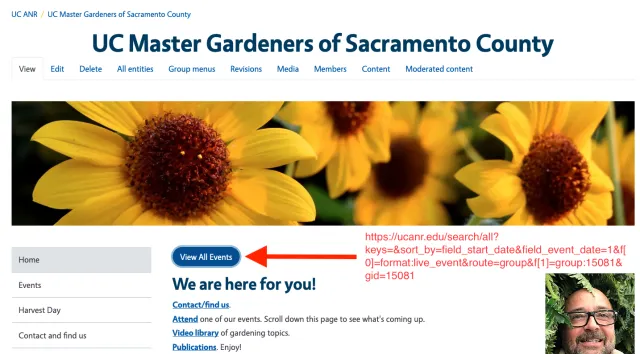
Older event links may use a URL similar to this:
https://ucanr.edu/search/all?keys=&sort_by=field_start_date&field_event_date=1&f[0]=format:live_event&route=group&f[1]=group:<group-ID>&gid=<group-ID>
To find the correct link for your site, go to the site's homepage and scroll to the Events section, if one is available. Select or copy the View All Events link. You can use this URL when adding an events link to your Left Nav or Group Menu.
Example
On the Sacramento Master Gardeners site, the View All Events button in the Events section uses the current URL format:
https://ucanr.edu/upcoming-group-events/15081
The older View All Events link at the top of the page uses the previous search URL and results in a 403 Forbidden error.
How to Fix It on Your Site
- Locate the link. In the group homepage editor or the Left Nav/Group Menu editor, find the "View All Events" link that contains the outdated URL.
- Replace the URL. Change the link to https://ucanr.edu/upcoming-group-events/<group-ID>, using the correct group ID for your site.
- Use a relative link if preferred. You can also use /upcoming-group-events/<group-ID>.
- Save your changes. Clear the cache if needed, or allow a few minutes for the change to appear.
- Test the link. Confirm that the Events page loads correctly and that events display in the proper order.
Adding Non-ANR Authors to Sites and Blogs
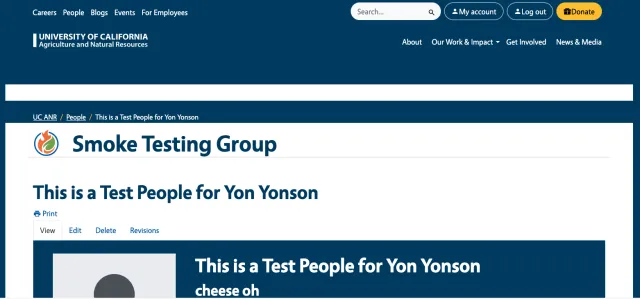
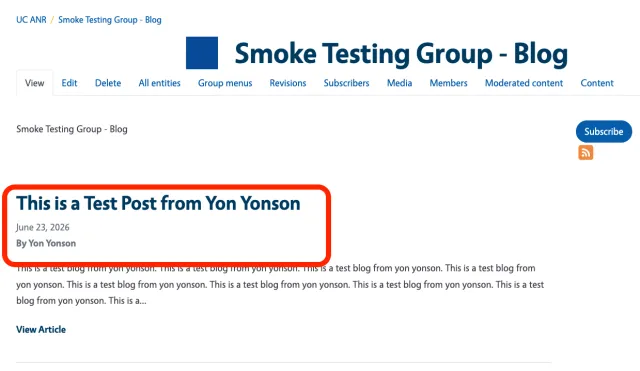
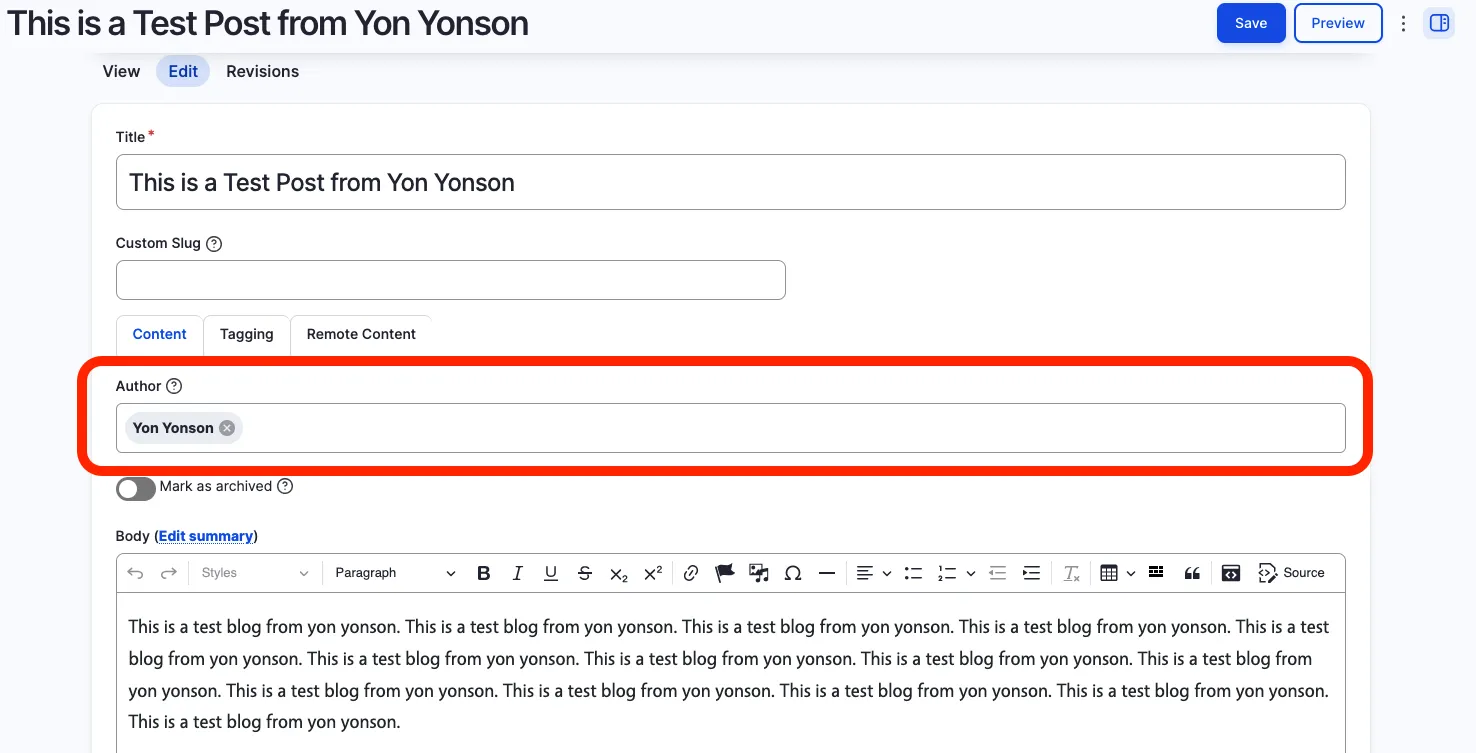
If you need to add a blog author who is not part of UC ANR, first create a People Content Type entry for that person within a Site. Once the person has been added, they can be selected in the Author field for blog content.
People Content Type:
Add the non-ANR person using the People Content Type. The person can then be selected as an author on a blog or site.
Author:
Select the person in the Author field when creating or editing the blog content.
URLs: HTTP, HTTPS and WWW
UC ANR websites use HTTPS for URLs. HTTP links will generally redirect to the secure HTTPS version, but you should use HTTPS when creating or updating links rather than relying on a redirect.
UC ANR URLs also do not use the www subdomain. Avoid adding "www" when entering or sharing UC ANR URLs.
If you experience unexpected redirect issues, try clearing your browser cache and history.