
Select a different user manual
Your completed case materials and review comments are archived in Project Board. Follow the instructions below.
1. Log on to Project Board.
- Go to projectboard.ucanr.edu in any web browser except Internet Explorer.
- Select "Login - UC Credentials".
- Sign on with UC Davis Kerberos credentials (you can also type in UC ANR email, it will have the same effect).
- You may be asked to authenticate with DUO.
Troubleshooting: If you see a pop up about Project Board re-initializing, click OK. You may need to repeat this a few times. This popup is normal and a good sign that Project Board is working!
2. On the top right, select the dropdown menu, then select Academic Program Review.
3. Select My Cases in the top menu the select the filter labeled Complete.
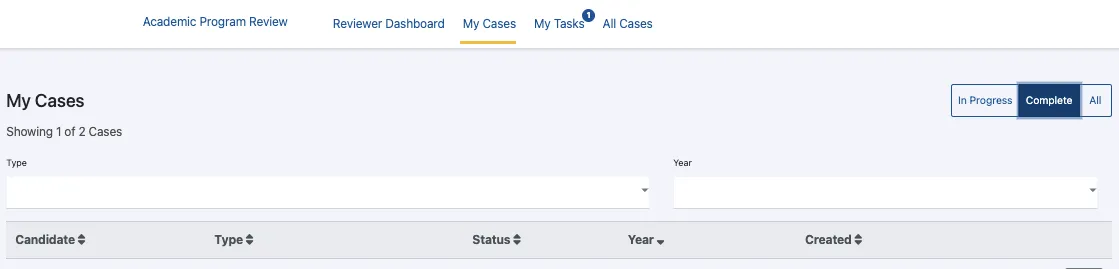
4. Select View to the right of the year you want to open. Please note that Project Board Academic Program Review files only go back to the 2018-2019 review cycle (period of review ending in 2018). Prior to that, review files are in the former application accessible by logging in to ANR Portal.
5. You may select View or Download to view the files.
Troubleshooting
I see a pop up about Project Board re-initializing.
Click OK. You may need to repeat this a few times. This popup is normal and a good sign that Project Board is working!
When I click on an icon, nothing happens.
You may need to enable pop-up windows for projectboard.ucanr.edu
I can see Project Board, but when I go to My Cases, the screen is blank.
Select the filter to show Completed and All cases.