IWP includes an Archive feature that allows pages and documents to be removed from active site content while remaining available in the system. Archived content can still be accessed by site editors and can be restored if needed.
Existing documents, including PDFs, Word documents and spreadsheets, were moved to the Archive when the feature was introduced. You can also archive or unarchive individual pages and documents, or update multiple items at once.
Accessibility and archived documents
Archiving a document does not eliminate the need to provide accessible content upon request. If someone requests an accessible version of an archived document, the request must be addressed in a timely manner. Depending on the content, this may mean remediating the original document, providing an accessible version in another format or converting the information to an accessible web page.
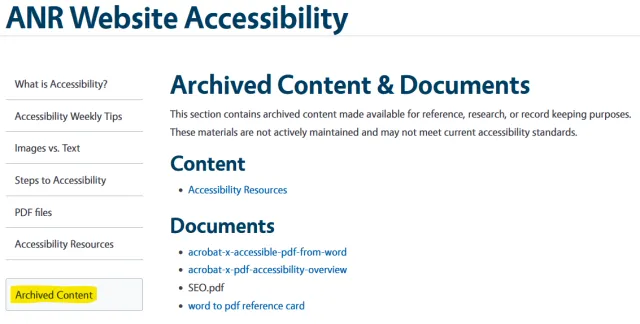
Where to Find Archived Content
The Archive Content link appears at the bottom of the left-hand navigation menu on sites that have archived content.
Archived pages appear under Content, while archived files appear under Documents. Documents are sorted by their Name/Media Name rather than their Title.
Links to archived documents display an Archived label.
Archive a Single Page
To archive a single page on your site:
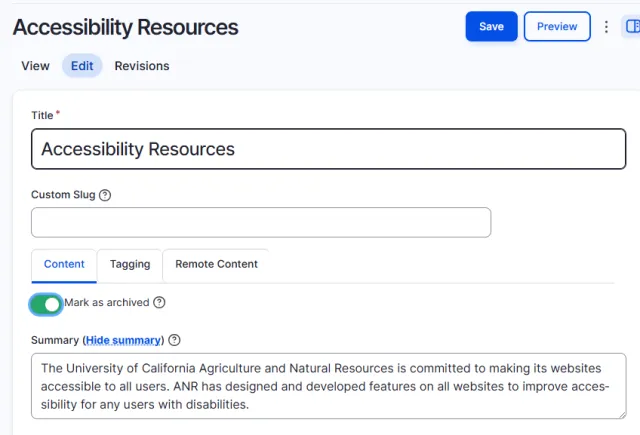
- Open the page you want to archive and select Edit.
- Locate the Mark as Archived toggle on the Content tab.
- Turn the toggle on. When the toggle is green and positioned to the right, the page is marked as archived.
- Save the page. The archived page will appear in the Content section of the Archive.
- To unarchive the page, turn the toggle off so it is gray and positioned to the left, then save the page.
Archive a Single Document
To archive a single document on your site:
- Go to the Media tab and select Edit next to the document you want to archive.
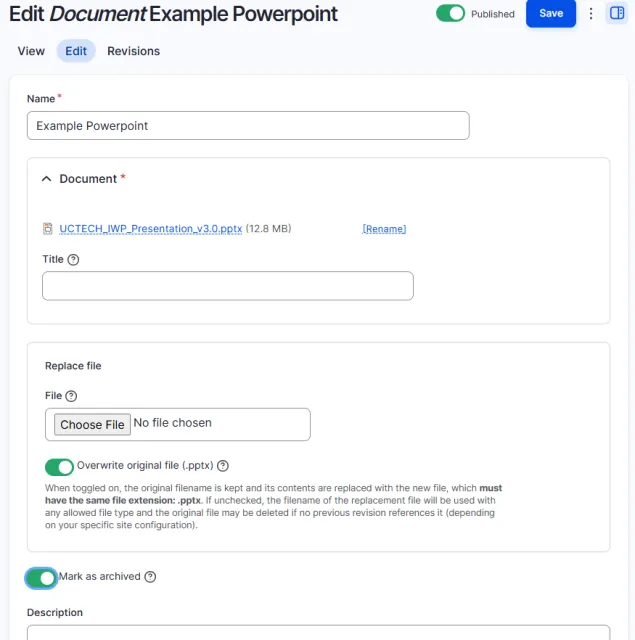
- Locate the Mark as Archived toggle below the Replace file field.
- Turn the toggle on. When the toggle is green and positioned to the right, the document is marked as archived.
- Save the document. It will appear in the Documents section of the Archive.
To unarchive a document, turn the toggle off so it is gray and positioned to the left, then save the document.
Archive Multiple Pages or Documents
You can also archive or unarchive multiple pages or documents at once.
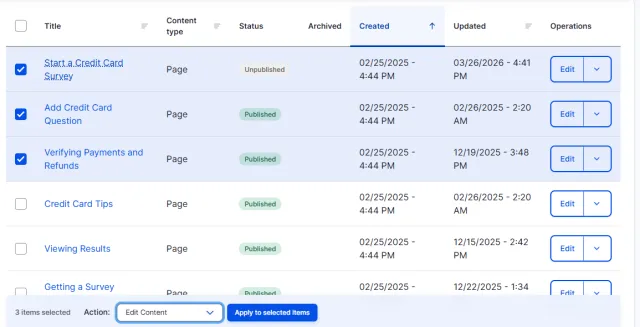
- Go to the Content or Media tab for your site.
- Use the checkboxes to select the pages or documents you want to update.
- From the Action menu at the bottom of the page, select Edit Content or Edit Media, then select Apply to selected items.
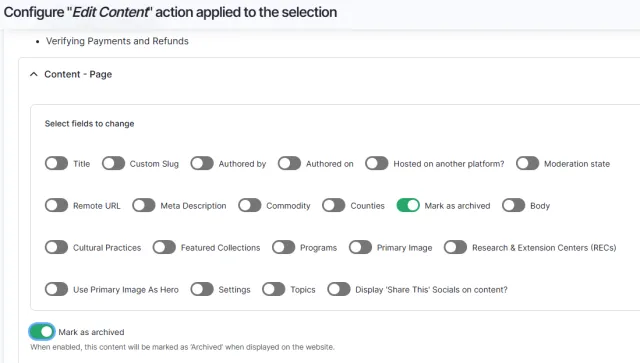
- On the Edit Content or Edit Media action page, turn on the Mark as Archived option.
- When the additional Mark as Archived toggle appears below the Select fields to change section, turn that toggle on as well.
- Select Apply to archive the selected content.
To unarchive multiple pages or documents, follow the same process and turn the archive option off before selecting Apply.