
Web-maps are commonly used in cooperative extension to display the location of partners or collaborators or highlight resources clientele can go to. These web-maps typically show the location of the entity and related information that get displayed on a pop-up. In other instances, web-maps are used for exploratory purposes such as displaying multiple layers of interest that relate to a specific geographic area.
The Challenge of Converting Dashboards for Mobile View:
Converting this web-maps into dashboards is easy for viewing on a desktop. Here comes a challenge: When the same dashboard has to be converted for mobile view. The screen space is limited on mobile compared to a desktop. This requires many considerations to be made.
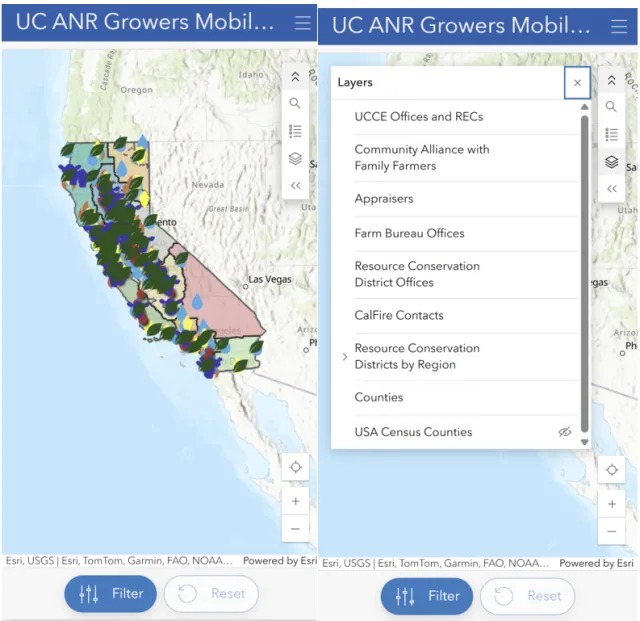
Here is an example of how a dashboard looks when converted to mobile view. There are many layers that are displayed. When one turns on the legend or the layer using the icons to the right of the screen, legend or the layer visibility covers most of the screen. This makes it hard to see underneath without closing the Layer/Legend to explore the map.
Choosing the Right Instant App:
ESRI Instant App has several templates that are suitable for different purposes to convert web-map into an web-app that makes it friendly for exploring, navigating purpose and has a more professional look and feel. Web-maps are more for editing purposes while web-apps are designed to have a public interface. Thus, choosing the right template for your instant app which serves the purpose for which you created the web-map is important.
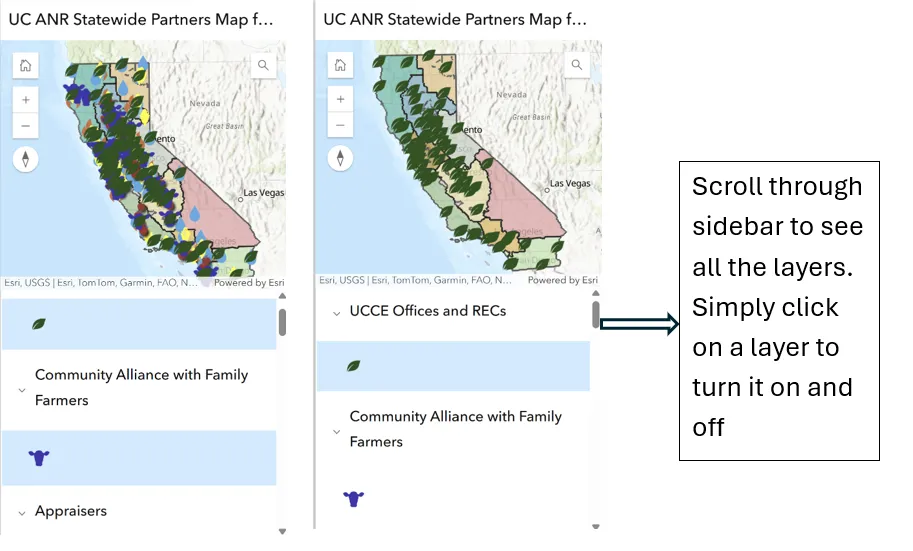
- Interactive Legend: The legend can be used to toggle layers on and off. Design is simple and it has minimal features. This makes it suitable for mobile view. To view an item on a web-map, one would simply have to click on a layer and click again for an item to not show on the map.
2. Portfolio Template:
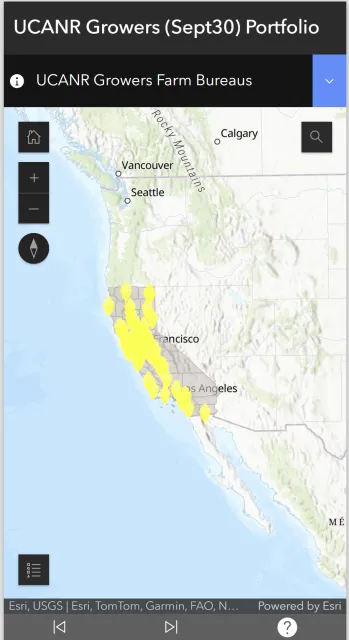
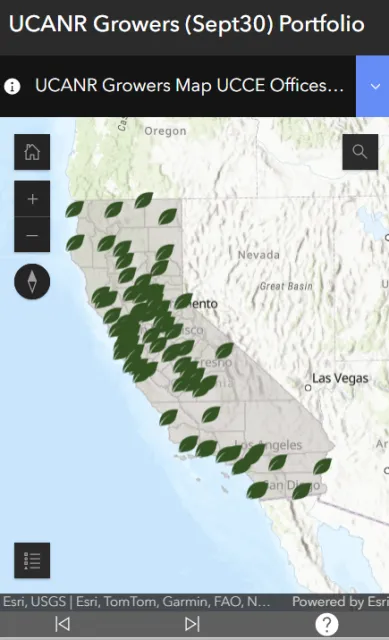
This has a nice look and feel. It gives a drop down menu to select from different layers and the map and also gives side arrow at the bottom to scroll through different layers. Compared to other designs this template allows for a wider screen area for viewing the map, making it mobile friendly where space is a real constraint.
3. Atlas View:
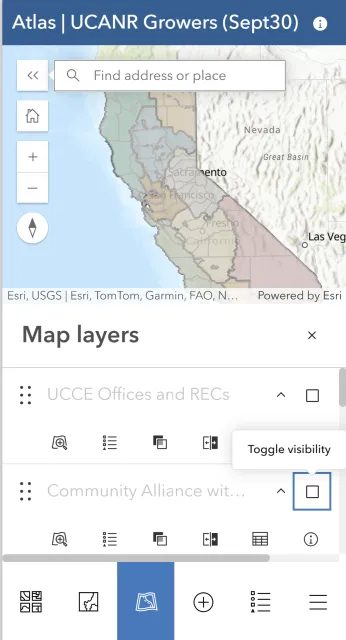
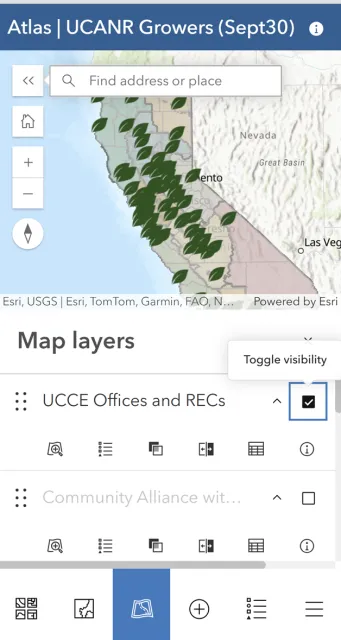
As the name suggests, this template can be useful to view many web-maps for a single geographic region. One can simply use the bottom panel to toggle the visibility of a layer on and off by using the check box next underneath each layer name. The legend and layer do not cover the main map. Downside to this app is it has some additional widgets that may not be relevant for all types of web-apps.
content