
Reviewer Instructions
Academic Program Review reviewers are supervisors, ad hoc committee members, peer review committee members, and the Associate Vice President who review Annual Evaluation and Advancement materials and submit documents with their comments. Project Board has an Academic Program Review - Reviewer Dashboard to facilitate the review process.
Supervisor/Reviewer Comments and Due Dates
Please see the annual AHR calendar on this AHR webpage for due dates.
Step 1 - Log on to Project Board.
- Go to projectboard.ucanr.edu in any web browser except Internet Explorer.
- Select "Login - UC Credentials".
- Sign on with UC Davis Kerberos credentials (you can also type in UC ANR email, it will have the same effect).
- You may be asked to authenticate with DUO.
- Troubleshooting: If you see a pop up about Project Board re-initializing, click OK. You may need to repeat this a few times. This popup is normal and a good sign that Project Board is working!
- In the top right corner of Project Board, select the dropdown menu, and select Reviewer Dashboard.
Step 2 - Open a case
- In the top right corner of Project Board, select the dropdown menu, and select Reviewer Dashboard.
- Select the name of the person you want to review in the list on the left.
- Tip: Use keyword search bar to find a person with less scrolling.
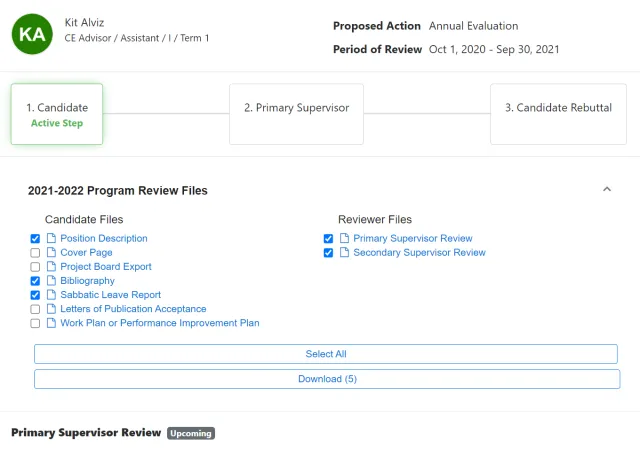
Step 3 - Read case materials
- Select on any file available to you under Candidate Files or Reviewer Files. The file will be downloaded to your computer and/or pop up in a new web browser window. You can also check multiple files or all files to download a zip file to your computer.
- If you are a PRC reviewer, you may also have a Box folder of materials for your convenience. Contact AHR for more information.
- If you are an ad hoc reviewer, you may also have a Box folder of materials for your convenience. Contact your ad hoc committee chair for more information.
- To get back to the case list, go back the Reviewer Dashboard (see step 1). To navigate to another case, select any name in the list on the left.
Step 4 - Download and fill out your review template
- At the bottom of the case, you will see a link to download the template for your reviewer role (e.g., Supervisor, Ad Hoc, Peer Review Committee).
- Download and fill out your respective template.
- Save your review document your computer so that you can later upload it.
Step 5 - Upload your review document and submit
- Access the Reviewer Dashboard (step 1) and select a case (step 2) and select Upload and Submit Your Review.
- Select Choose File and navigate to the file you saved on your computer.
- Select Submit when complete.
- You will see an empty My Tasks screen after submitting. You can close the web browser tab.
- You can delete and upload new documents anytime before the due date. Instructions:
- Acccess the Reviewer Dashboard (step 1).
- Select My Tasks.
- Select Completed.
- Locate the name and program year and select View.
- Select Delete then Choose File to upload a new file.
- Select Submit.
- You will see an empty My Tasks screen after submitting. You can close the web browser tab.
Step 6 - Confirm submission
- Go back to the Reviewer Dashboard (steps 1-2).
- Select My Tasks.
- Select Completed.
- Locate the name and program year and select View.
- Select a file to download and view.
Contact AHR for any questions.
Troubleshooting
I see a pop up about Project Board re-initializing
Click OK. You may need to repeat this a few times. This popup is normal and a good sign that Project Board is working!
I can see Project Board, but when I go to My Tasks, the screen is blank.
Select the filter to show Completed and All cases.